
How to Add Motion Graphics to Your Podcast Video Without a Design Background
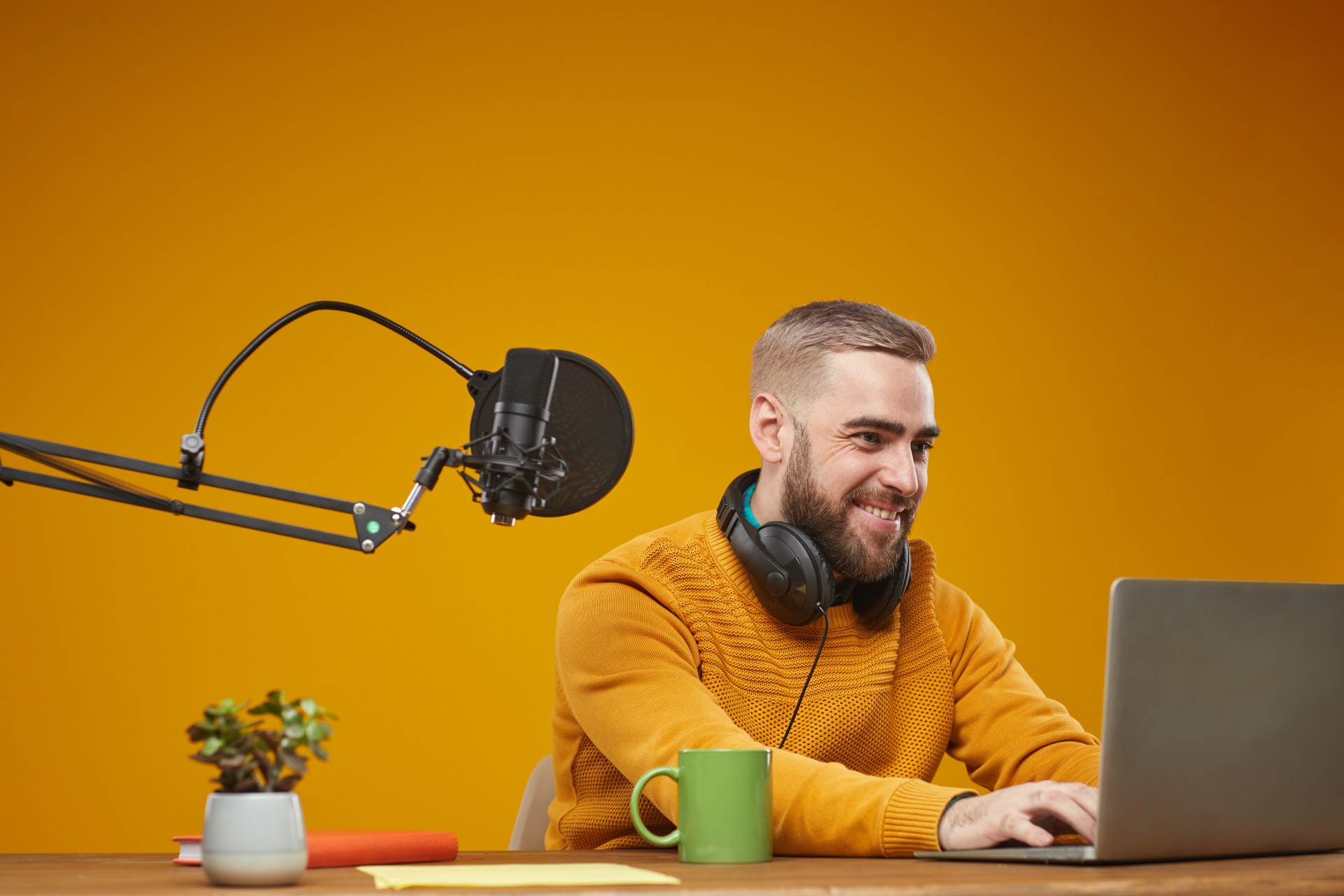
If you have ever watched a polished video podcast and wondered how they get those animated lower thirds, smooth text reveals, and branded transitions — and then looked at your own static talking-head video and felt the gap — this guide is for you.
The good news is that motion graphics for video podcasts no longer require a motion designer, an Adobe After Effects licence, or years of animation training. In 2026, the tools available to independent creators make it possible to add professional-looking graphics to your podcast video in an afternoon, even if your design experience begins and ends with making a WhatsApp status.
This is not about making your video look like a Hollywood production. It is about making it look like you took it seriously — because that is exactly what your audience and potential sponsors are judging.
Why Motion Graphics Matter for Your Video Podcast
A video podcast competes in a visual medium. When someone is scrolling through YouTube, Instagram Reels, or LinkedIn, your thumbnail and your first three seconds of video are doing the selling. Static text on a plain background loses to animated text on a branded background every single time, not because animation is inherently better but because it signals production value and intentionality.
Motion graphics serve several specific purposes in a video podcast:
Lower thirds identify your guest or co-host by name and title the moment they appear on screen. Without them, a viewer who joins mid-episode has no idea who they are watching.
Intro animations set the tone in the first five seconds and immediately tell a viewer whether this show is professional or amateur.
Transition graphics smooth out cuts between segments, camera angles, or interview sections without jarring the viewer.
Text animations highlight key quotes or statistics mid-episode, giving editors something to cut for social clips that perform well on short-form platforms.
Outro cards direct viewers to subscribe, follow, or visit a link — and an animated outro card outperforms a static one in click-through rate consistently.
None of these require a design background. They require the right tools and a basic understanding of how to use them.
The Tools That Make This Possible Without Design Skills
Canva — The Starting Point for Most Creators
Canva has evolved well beyond a graphic design tool. Its video editor now supports animated elements, transitions, and text animations that can be dropped into a video timeline in minutes. The free tier gives you access to a substantial library of animated templates. The Pro tier unlocks the full motion graphics library and the ability to resize exports for different platforms in one click.
For a video podcaster without any design background, Canva is the most forgiving entry point. You pick a template that matches your brand colours, swap out the placeholder text for your show name and guest details, and export.
The limitation is that Canva's motion graphics are pre-built. You can customise the text and colours, but you cannot animate individual elements the way a dedicated motion design tool would allow. For most podcasters starting out, this is not a limitation — it is a feature. Less control means less time spent and fewer decisions to agonise over.
CapCut — Best for Short-Form Video Clips
If a significant part of your video podcast strategy involves cutting clips for Instagram Reels, YouTube Shorts, or LinkedIn, CapCut is worth learning. It has a generous library of animated text presets, auto-caption generation with animated styling, and trend-based template packs that update regularly.
CapCut is particularly strong for the 60-to-90-second highlight clips that drive podcast discovery in India's social media landscape. The templates are built for vertical 9:16 format, which means your clips are already sized correctly for mobile-first platforms without manual resizing.
DaVinci Resolve — The Professional Option at Zero Cost
DaVinci Resolve is a professional-grade video editing and colour grading tool used in film and television production. It is also completely free for the version that covers everything an independent podcaster will ever need.
What makes Resolve relevant here is its Fusion page — a built-in motion graphics and visual effects compositor. Fusion is genuinely powerful and genuinely complex. The learning curve is steeper than Canva or CapCut, but the ceiling is much higher. If you are committed to producing video podcasts for the long term and want full control over your graphics without ever paying for a motion designer, learning Fusion is an investment worth making.
There are hundreds of free Fusion templates created by the DaVinci Resolve community that you can drop into your project, customise with your branding, and use across every episode.
Adobe Express — For Adobe Creative Cloud Subscribers
If you are already paying for Adobe Creative Cloud, Adobe Express gives you access to animated graphic templates that integrate with your existing brand kit. It is less powerful than Canva in terms of the motion library but better suited to creators who are already working across Premiere Pro and Audition, since assets move between Adobe apps cleanly.
Descript — For Podcasters Who Edit by Transcript
Descript is an AI-powered editing platform that allows you to edit your video podcast the way you would edit a Word document — by cutting and rearranging the transcript. It also includes a suite of simple motion graphic elements: animated captions, lower thirds, and intro/outro templates.
If you are already using Descript for transcript-based editing, using its built-in graphics tools keeps your entire workflow in one place, which reduces the time between recording and publishing significantly.
The Three Motion Graphics Every Video Podcast Needs
You do not need to add fifteen different animated elements to your video. Most professional video podcasts rely on three core graphic elements, executed consistently, to build a branded look.
One: The Animated Intro
Your intro plays at the start of every episode and runs for five to fifteen seconds. It should include your show name, a short tagline or episode number, and optionally the episode title. The animation itself can be as simple as a logo reveal with a smooth fade or a text slide-in — nothing elaborate.
The key is consistency. The same intro on every episode trains your audience's brain to recognise your show the moment it appears, which builds trust and recall over time.
To build this in Canva: search "podcast intro" in the templates panel, filter by video, and choose a style that matches your branding. Swap the text, adjust the colours to your brand palette, and export as an MP4. You will reuse this file on every episode going forward.
Two: Lower Thirds
A lower third is the text graphic that appears in the lower portion of the frame, typically identifying the person on screen. For a solo podcast it shows your name and title. For an interview podcast it shows the guest's name and designation.
In Canva, lower thirds are available as animated elements you can place over your video. In DaVinci Resolve, they are available as Fusion templates. In CapCut, there are text presets that replicate the lower third style.
Create a lower third template with your brand colours and font once. Then for each episode, duplicate it and update the name and title. This takes less than two minutes per episode once the template exists.
Three: The Animated Outro
Your outro appears at the end of every episode and should include a call to action — subscribe, follow, leave a review, or visit your website. An animated outro with a bouncing subscribe button or a pulsing link card consistently outperforms a static graphic because movement catches the eye even when a viewer has already started reaching for the next video.
Keep your outro under fifteen seconds. A clear single call to action performs better than three competing ones.
Building a Brand Kit Before You Build Graphics
Before you open any design tool, spend thirty minutes establishing four things that will govern every graphic you ever create for your show:
Primary colour and one accent colour. Two colours are enough. More than two creates visual noise. Choose colours that reflect the tone of your show — deep blues and greys signal authority and professionalism, warm oranges and reds signal energy and conversation, muted greens signal wellness and calm.
One font for headings and one for body text. Free fonts from Google Fonts (Montserrat, Inter, Poppins, Raleway) are widely used in podcasting graphics because they are clean and legible at small sizes on mobile screens.
Your logo as a PNG with a transparent background. This allows you to place it on any graphic without a white box around it.
Your show name written exactly as it should always appear. Decide once whether it is all caps, title case, or something specific, and never deviate.
Once these four elements are defined, save them somewhere accessible. Canva Pro stores them as a Brand Kit automatically. If you are on the free tier, keep a reference document open alongside your design tool.
Every graphic you create should use only these elements. Consistency across episodes builds a recognisable visual identity faster than any individual graphic decision.
A Simple Workflow for Adding Graphics to Each Episode
Here is a repeatable process that takes under thirty minutes per episode once your templates exist:
Step one. Finish your video edit and export a rough cut with no graphics applied.
Step two. Open your intro template in Canva or your editing software. Confirm the episode number and title are correct. Export the intro as an MP4.
Step three. Create lower thirds for everyone who appears in the episode. Duplicate your template, update the name and title, export each as an MP4 with a transparent background if your tool supports it, or as a file formatted for your editing software.
Step four. Import your rough cut, intro, lower thirds, and outro into your video editor. Place the intro at the start, drop lower thirds over the relevant sections, and add the outro at the end.
Step five. Export the final video and review the first thirty seconds and the last thirty seconds specifically — these are where graphic errors are most commonly found.
The first time you run this process it will take two to three hours because you are building the templates. From the second episode onwards, thirty minutes is a realistic target.
Common Mistakes to Avoid
Using too many different animation styles. If your intro has a slide-in effect, your lower thirds have a bounce effect, your transitions have a spin effect, and your outro has a glitch effect, the result looks like a clip art presentation from 2005. Pick one animation style and apply it consistently.
Making text too small for mobile. Most of your audience will watch on a phone. Any text that is smaller than roughly one-tenth of the frame height will be unreadable on mobile. Check every graphic on your phone before finalising it.
Using colours that clash with your footage. If you are recording against a white or light grey background, dark-coloured lower thirds will look intentional and clean. If you are recording against a busy background, a semi-transparent dark bar behind your lower third text helps it remain readable.
Changing your graphic style every few episodes. Consistency matters more than perfection. A simple graphic system applied consistently for fifty episodes will build stronger brand recognition than a redesigned, more elaborate system that changes every ten episodes.
Skipping the outro. The outro is the highest-value graphic element in terms of direct return on investment. A viewer who has watched your entire episode is the most likely person to take an action. Not having an animated, clear call to action at that moment is leaving audience growth on the table.
When to Bring in a Professional
There is a point at which the DIY approach costs more in time than a professional would cost in money. That point is different for every creator, but here are the signals that you have reached it:
You are spending more than three hours per episode on graphics and it is the part of production you dread most. Your show has grown to the point where a refresh of your visual identity would have meaningful impact. You are pitching to sponsors and your current graphics do not match the professional positioning you are trying to present.
At that point, commissioning a motion designer to build you a template pack — an intro, a lower third system, a transition set, and an outro — is a one-time investment that pays back across hundreds of episodes. You still handle the episode-level customisation yourself, but the creative and technical heavy lifting is done by someone trained for it.
Fox Talkx Studio works with video podcast creators at every stage of production, from recording through to post-production support. If your video is growing beyond what a DIY workflow can support, it is worth a conversation about what professional production can do for your show.
Motion Graphics Are a Signal, Not a Shortcut
Motion graphics do not make a mediocre podcast good. They make a good podcast look like it deserves to be taken seriously. The content — the quality of your questions, the depth of your guests, the consistency of your publishing — is still what builds an audience.
But in a medium where every creator is competing for the same thirty seconds of scroll attention, looking professional is no longer optional. The tools exist, the templates are free or low-cost, and the skills required are genuinely accessible to anyone willing to spend an afternoon learning them.
Start with one template. Build the intro. Use it for ten episodes. Then add the lower thirds. Then the outro. Build the system piece by piece, and in three months you will have a video podcast that looks like it has a production team behind it — even if it is just you and a good DAW.