
How to Blur a Video Quickly and Easily: A Complete Guide for Video Creators
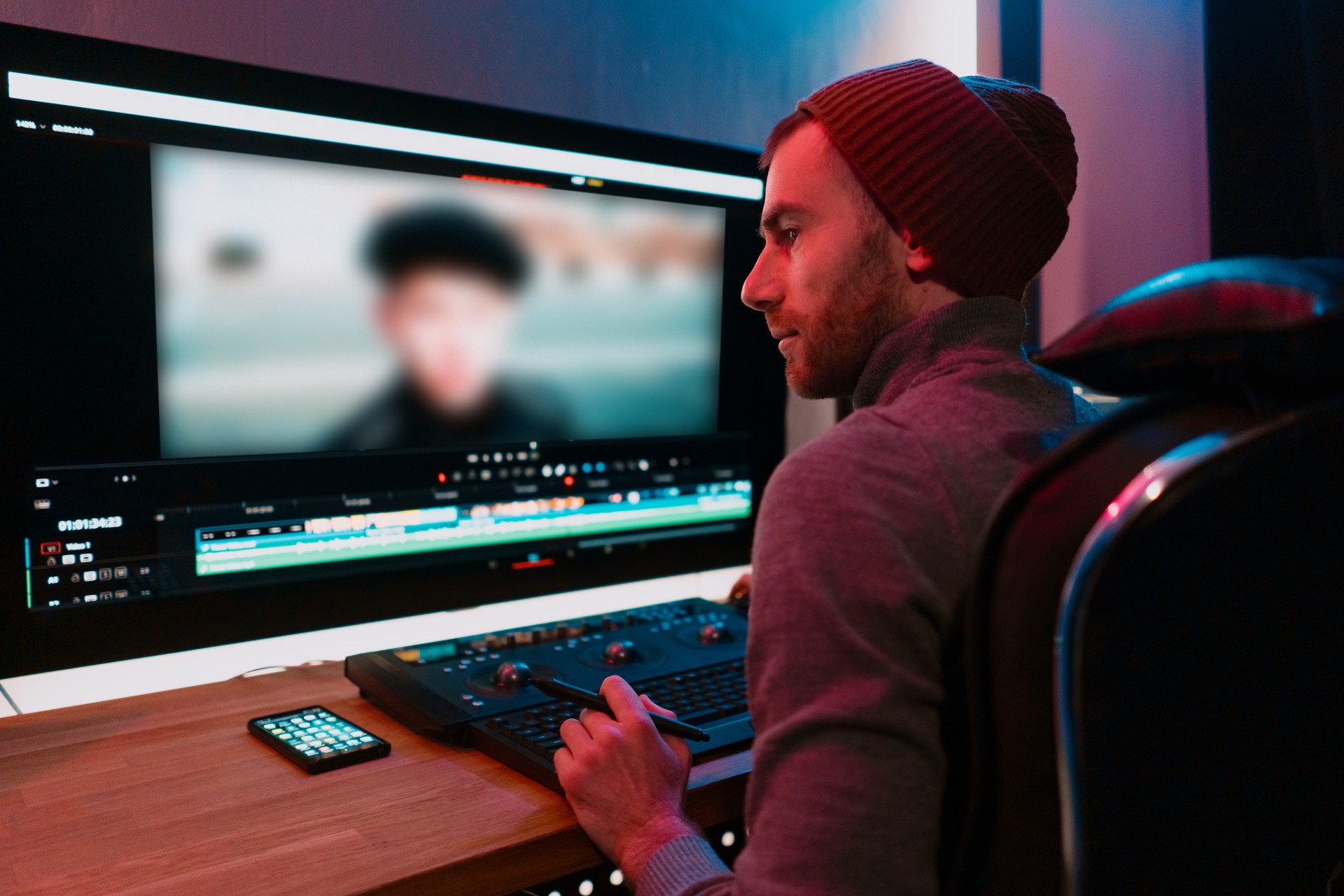
Video blurring is one of those editing techniques that appears simple on the surface but reveals surprising depth the more you work with it. At its most basic, blurring a video means applying a visual softening effect to all or part of the frame. But the specific reasons for blurring, the specific areas being blurred, and the specific tools used to achieve the effect all vary considerably, and the difference between a blur that looks professional and one that looks amateurish often comes down to understanding these distinctions clearly.
For podcast video creators and video content producers, blurring serves several distinct purposes. Privacy protection, where identifying information, faces, or sensitive content in the background of a recording needs to be obscured before the footage can be published. Background blurring, where a distracting or unsuitable recording environment needs to be softened to focus the viewer's attention on the speaker. Aesthetic depth of field effects, where blurring the background creates the professional, cinematic look associated with high-quality video production. Creative emphasis, where specific elements of the frame are blurred to direct the viewer's attention toward the unblurred elements. And transition and stylistic effects, where blur is used as a visual language device to signal changes in time, perspective, or emotional state.
Each of these applications has different technical requirements and different best practices, and this post covers all of them with the practical specificity that video creators need to apply blur effects correctly and efficiently in their own work.
Understanding the Different Types of Video Blur
Before examining the tools and techniques for applying blur effects, understanding the different types of blur available in video editing applications, and the specific purposes each serves, provides the framework for choosing the right blur approach for each application.
Gaussian Blur: The Standard Blur Effect
Gaussian blur is the most commonly used blur type in video editing. It softens the image by blending each pixel with its neighbors in a pattern that corresponds to a bell curve distribution, creating a smooth, even softening of the entire treated area. The intensity of the Gaussian blur is controlled by a radius parameter: a larger radius produces a more pronounced blur, and a smaller radius produces a more subtle softening.
Gaussian blur is appropriate for background blurring, for obscuring sensitive information across a defined area, and for creating the soft focus effects used in stylistic transitions and emotional emphasis moments. It is available as a built-in effect in every major video editing application and requires no specialized plugins or additional software.
Motion Blur: Simulating Camera and Subject Movement
Motion blur simulates the visual effect that occurs when a camera or subject moves during the camera's exposure, creating a directional streaking in the image that conveys a sense of speed or movement. In video editing, motion blur is typically applied to graphic elements, animated text, or transition sequences to make their movement feel more natural and physically believable.
Motion blur is less commonly used in podcast video editing than Gaussian blur but has specific applications in motion graphics and animated sequence production where the physical plausibility of moving elements is important for the professional quality of the result.
Radial Blur: Creating Zoom and Rotation Effects
Radial blur creates a softening effect that radiates from a specific center point in the image, either in a zoom pattern that suggests rapid movement toward or away from the camera, or in a rotation pattern that suggests spinning movement around the center point. Radial blur is used primarily for stylistic and creative effects rather than for practical purposes like privacy protection or background softening.
Directional Blur: Conveying Speed and Motion
Directional blur, sometimes called linear blur, applies a softening effect in a specific direction across the image, creating the visual impression of rapid movement in that direction. Like radial blur, directional blur is primarily a stylistic effect used in creative transitions and motion graphics rather than in practical podcast video editing contexts.
Why Podcast Video Creators Need Blur Techniques
For podcast video creators specifically, blur techniques serve several practical and creative purposes that arise regularly in the post-production process.
Protecting Privacy in Background Content
One of the most common practical applications of blur in podcast video editing is protecting the privacy of individuals or sensitive information that appears unintentionally in the background of recordings. A recording made in an office environment might include other people who did not consent to be recorded, confidential documents visible on a whiteboard, or computer screens displaying sensitive information. Before this footage can be published, the identifying or sensitive content must be obscured.
Applying a tracked blur effect that follows a moving subject or a static blur that covers a defined area of the frame addresses this privacy requirement efficiently. The audience sees a blurred area that signals something has been deliberately obscured without disrupting the visual flow of the primary content.
Creating Depth of Field Effects in Post-Production
Not every podcast video recording is made with camera equipment capable of producing a naturally shallow depth of field that separates the speaker from the background with a pleasingly soft focus. Cameras with smaller sensors, fixed focus lenses, or recording settings that prioritize depth of field for practical recording purposes may produce footage where the background is in sharp focus even when a soft background would be visually preferable.
Post-production background blur can simulate the shallow depth of field effect by selectively blurring the background of the frame while keeping the speaker in sharp focus. The quality of this simulated depth of field effect varies with the sophistication of the approach used, from simple Gaussian blur applied to the full background to AI-powered background separation tools that create more accurate subject-background distinctions.
Obscuring Unsuitable Recording Environments
Podcast creators who record in home or office environments may find that the recording space is not always visually suitable for publication. A cluttered background, an inappropriately casual environment for a professional show, or a space that contains brand or product imagery that cannot be associated with the podcast's content are all situations where blurring the background produces a more suitable visual result than publishing the recording as captured.
For podcast creators in Mumbai who want to avoid background suitability problems at the source rather than addressing them in post-production, recording in a professional studio environment with a purpose-designed visual background eliminates the need for post-production background treatment entirely. Fox Talkx Studio provides professional podcast recording and editing services in a studio environment designed specifically for video podcast production. Explore the studio's services at https://www.foxtalkxstudio.com/services/podcast-editing-in-mumbai.
How to Blur a Video in Professional Editing Applications
The specific process for applying blur effects to video footage varies across different editing applications, but the underlying workflow is consistent: select the clip, apply the blur effect, define the area to be blurred if necessary, adjust the blur intensity, and set keyframes if the blur needs to change or track movement over time.
Applying Blur in Adobe Premiere Pro
Adobe Premiere Pro includes several blur effects in its Effects panel under the Video Effects category. The Gaussian Blur effect is the most commonly used and provides straightforward controls for blur intensity through its Blurriness parameter.
To apply a Gaussian blur to an entire clip in Premiere Pro, the effect is dragged from the Effects panel to the clip in the timeline, and the Blurriness parameter is adjusted in the Effect Controls panel to the desired intensity. The Repeat Edge Pixels option in the Gaussian Blur controls should typically be enabled to prevent the edges of the frame from showing unblurred bands at the extreme border of the image.
For applying blur to a specific area of the frame, the effect is combined with a mask, created either by drawing a shape mask in the Effect Controls panel or by tracking a specific area of the frame using Premiere Pro's masking and tracking tools. The mask defines the area where the blur effect is applied, and the tracking function automatically adjusts the mask position to follow a moving subject across multiple frames.
The Track Mask tool in Premiere Pro allows a mask applied to an area of the frame to be automatically tracked as subjects or objects in that area move, which is essential for applications like face blurring where the blurred area needs to follow the movement of the subject through the frame.
For podcast creators in Mumbai who want privacy-protecting blur effects and background treatments applied to their footage as part of a professional post-production service, the editing team at Fox Talkx Studio handles these technical effects as part of their comprehensive podcast editing workflow. Learn more about professional podcast video editing services at https://www.foxtalkxstudio.com/services/podcast-editing-in-mumbai.
Applying Blur in DaVinci Resolve
DaVinci Resolve provides blur tools across multiple stages of the editing and color grading workflow. The OpenFX panel in the Color page includes Gaussian Blur and other blur effects that can be applied to clips in the color grading context, and the Fusion page provides compositing-level blur tools with greater flexibility and control than the standard editing page effects.
For applying blur to specific areas of the frame in DaVinci Resolve, the power window and qualifier tools in the Color page allow the colorist to define specific areas or color ranges for selective color and effect treatment, including blur. These tools, combined with the tracking capabilities of the Color page, provide an efficient workflow for applying tracked blur effects to moving subjects in the frame.
The Fusion compositing environment in DaVinci Resolve provides even greater control over complex blur effects through its node-based compositing workflow, allowing intricate combinations of blur effects, masks, and tracking to be combined into precise and sophisticated visual treatments.
Applying Blur in Final Cut Pro
Final Cut Pro includes Gaussian and motion blur effects that can be applied to clips from the Effects browser. The Blur effect in Final Cut Pro's built-in effects library provides basic Gaussian blur capability with a straightforward Amount parameter that controls the intensity of the blur.
For applying blur to specific areas of the frame, Final Cut Pro's built-in Draw Mask effect combined with the Blur effect allows a defined shape to be applied as a mask for the blur effect. Final Cut Pro also supports third-party effect plugins that provide more sophisticated tracking and blur capabilities than the built-in tools offer.
Quick Blur Options for Non-Professional Editing Applications
For podcast creators who are not working with professional editing applications, several accessible tools provide functional blur capabilities for common blurring tasks.
Canva's video editor includes basic blur and pixelation effects that can be applied to video content through a browser-based interface without requiring downloaded software or professional editing expertise. The blur tools in Canva are limited compared to professional editing applications but are adequate for straightforward full-frame or large-area blur applications.
CapCut, the mobile and desktop video editing application, includes blur effects with basic masking capabilities that are accessible to users without professional editing training. CapCut's blur tools are adequate for simple background blurring and straightforward privacy protection applications, though their tracking and precision capabilities are limited compared to professional tools.
Kdenlive, a free open-source video editing application available for Windows, Mac, and Linux, includes blur effects with basic masking capabilities that provide more control than consumer applications like CapCut while remaining accessible to users without professional editing backgrounds.
Practical Techniques for Common Blur Applications in Podcast Video
With an understanding of the blur tools available across different editing applications, examining the specific techniques for the most common blur applications in podcast video production provides the practical guidance needed to apply these tools effectively.
Blurring a Face or Person for Privacy Protection
Face blurring for privacy protection requires a tracked blur effect that follows the movement of the face or person through the frame across the duration of the clip. A static blur that covers the face's position at one point in the clip will not cover it as the person moves, leaving identifying information visible in the frames where the face has moved outside the blur area.
The workflow for tracked face blurring in a professional editing application involves applying a Gaussian blur effect to the clip, drawing an elliptical mask over the face at the beginning of the clip, and then using the application's tracking function to automatically follow the face's movement through the remaining frames. After tracking is complete, the blur mask should be reviewed manually to identify and correct any frames where the automatic tracking has drifted from the face's position.
The blur intensity for face blurring should be sufficient to make the face completely unrecognizable, typically a Gaussian blur radius that fully obscures facial features while maintaining enough visual information about the general position of the head to maintain the visual coherence of the scene. Testing the blur intensity by viewing the footage at the intended output resolution and assessing whether the face is genuinely unrecognizable at that resolution is an important quality check before publishing.
Blurring a Background for Depth of Field Effects
Background blurring for depth of field simulation requires separating the background from the foreground subject and applying the blur effect only to the background layer. The precision of this subject-background separation is the primary factor in the quality of the resulting depth of field effect.
The most common approach for background blurring in podcast video editing is to use a selection tool, either a manual mask or an AI-powered subject detection tool, to create a matte that defines the boundary between the subject and the background. The blur effect is then applied to the footage through this matte, affecting only the background while leaving the subject in sharp focus.
AI-powered background separation tools, available as plugins for professional editing applications or built into consumer applications like Zoom's virtual background system, create more accurate subject-background mattes than manual masking for footage with complex or detailed background content. The accuracy of these AI tools varies with the quality of the footage and the complexity of the scene, and reviewing the matte quality on frames where the subject's edges are most visible is important for identifying and correcting areas where the separation is incomplete.
Blurring Sensitive Text and Information
Blurring sensitive text, such as personal contact information, financial figures, or confidential documents visible in the background of a recording, requires a static blur applied to the specific area of the frame where the text appears. If the camera or the document moves during the clip, a tracked blur is required to follow the movement.
The blur intensity for obscuring text should be sufficient to make the text genuinely unreadable, which typically requires a higher blur intensity than is needed for other blur applications. Testing the blur by attempting to read the obscured text at the intended output resolution is the appropriate quality check for text blurring applications.
An alternative to Gaussian blur for obscuring text is pixelation, which applies a mosaic of large color blocks over the obscured area rather than a gradual softening. Pixelation is arguably more effective than Gaussian blur for text obscuring because the blocky mosaic pattern is more disruptive to the letter forms of the text than the gradual softening of Gaussian blur, making the text harder to reconstruct even when the blur intensity is relatively modest.
Creative Blur Applications in Podcast Video Editing
Beyond the practical applications discussed above, blur effects can serve specific creative purposes in podcast video editing that enhance the storytelling and emotional impact of the content.
Blur Transitions Between Sections
A brief blur-in and blur-out applied at the transition point between major sections of a long-form podcast episode creates a visual punctuation that signals a significant shift in the content more subtly and elegantly than a hard cut or a dissolve. The blur transition works by applying a rapid increase in blur intensity over several frames at the end of the outgoing section and a rapid decrease in blur intensity over several frames at the beginning of the incoming section.
This technique is most effective when the blur transition is brief, typically lasting no more than eight to twelve frames in each direction, and when it is used selectively at significant structural transitions rather than at every cut in the episode.
Blur for Emphasis and Attention Direction
Applying blur to specific areas of the frame that are not the primary subject of attention at a given moment creates a visual hierarchy that directs the viewer's attention toward the unblurred element. A blur applied to everything in the frame except a specific graphic element being discussed draws the viewer's eye to that element with a visual emphasis that the spoken content reinforces.
This attention direction technique is most effective in educational and explanatory content where specific visual elements are being highlighted and analyzed, and where directing the viewer's attention to those elements precisely when they are being discussed reinforces comprehension and retention.
Managing Blur Quality Across Different Output Resolutions
A blur effect that looks appropriate at one output resolution may look insufficient or excessive at another, and testing blur intensity and coverage at the intended output resolution is an important quality control step for all blur applications.
Facial blur that is adequate to obscure a face in a 1080p output may be insufficient to obscure it in a 4K output where the higher pixel density reveals more facial detail through the blur effect. Conversely, a background blur that creates a pleasing depth of field simulation at 4K resolution may appear over-processed and artificial at lower resolutions where the subject-background transition is less visually refined.
Reviewing blur applications at the intended output resolution, not just at the editing application's standard preview resolution, ensures that the quality of the blur effect in the final published video matches the editorial intention.
For podcast creators who want the assurance that all blur effects in their video content are technically precise and professionally executed before publication, working with a specialist podcast video editing team provides the quality control that self-editing under time pressure cannot always guarantee. Fox Talkx Studio's podcast editing services in Mumbai ensure that every technical effect in every episode, including blur applications for privacy, aesthetics, and creative emphasis, is reviewed and refined to a professional broadcast standard. Explore the full range of professional podcast video editing services at https://www.foxtalkxstudio.com/services/podcast-editing-in-mumbai.
Key Takeaways
Video blurring is a versatile editing technique that serves practical, aesthetic, and creative purposes in podcast video production. Understanding the different types of blur available, the specific applications each type serves, and the workflow for applying blur effects in different editing applications is the foundation for using blur effectively and efficiently.
The most practically important blur applications for podcast video creators are privacy protection blurring that uses tracked masks to follow moving subjects, background blurring that simulates depth of field through subject-background separation, and sensitive information blurring that uses static or tracked masks with sufficient intensity to make text and data genuinely unreadable.
The most important quality consideration in all blur applications is testing the effect at the intended output resolution to confirm that the blur achieves its intended purpose at the resolution where the audience will actually experience it.
For podcast creators in Mumbai who want blur effects and all other technical post-production treatments handled at a professional standard as part of a complete editing service, Fox Talkx Studio provides the expertise and attention to detail that professional podcast video production requires. Visit https://www.foxtalkxstudio.com/services/podcast-editing-in-mumbai to discover what professional podcast video editing looks like for your show.