
How to Edit Videos on PowerPoint: A Complete Guide for Educators and Content Creators
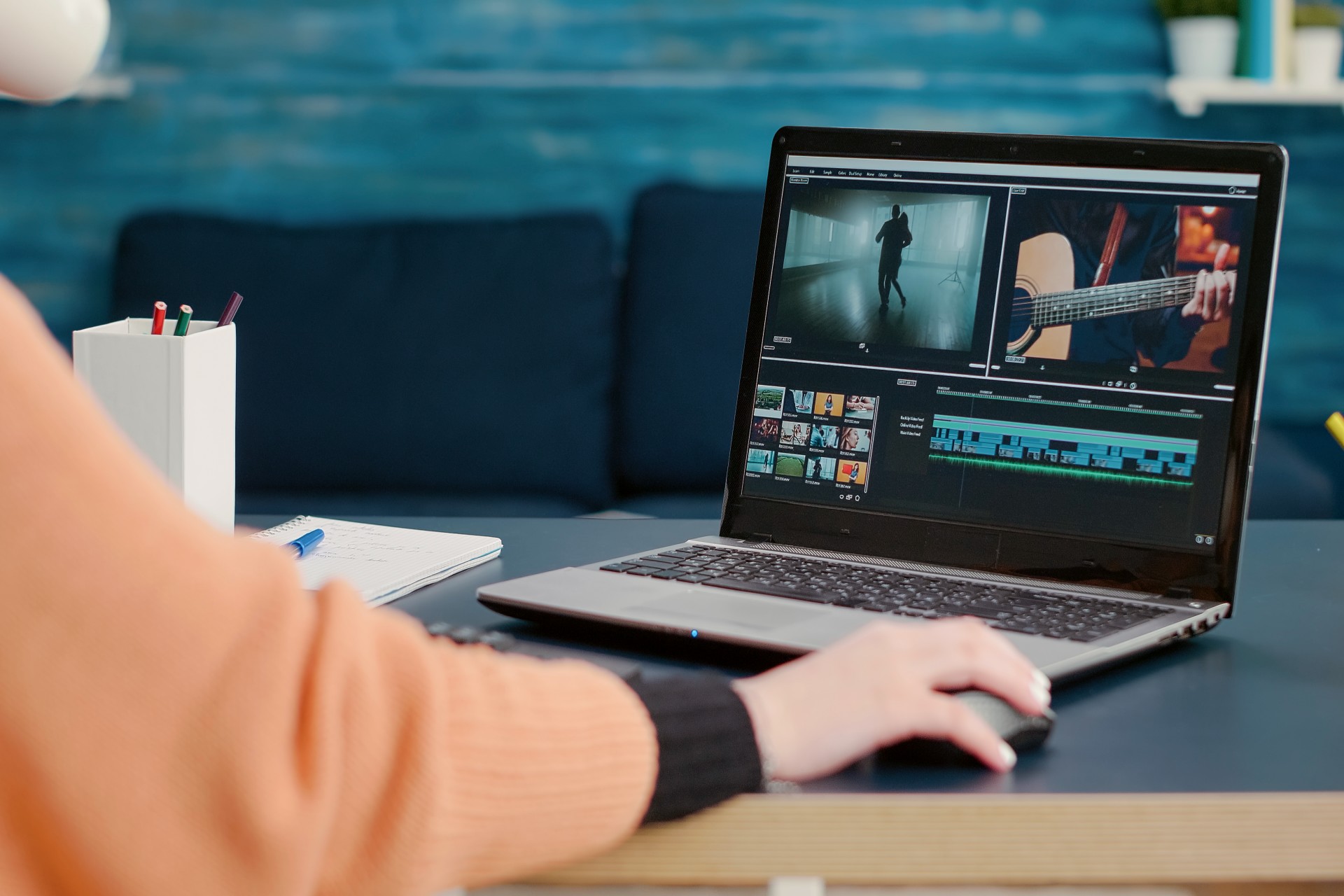
PowerPoint is one of the most widely used presentation tools in the world, and most of its users significantly underestimate what it can do with video. The assumption that PowerPoint is a slide-building tool and video editing requires dedicated software means that millions of educators, trainers, and content creators are working harder than necessary to produce presentations that combine slide content with video elements.
PowerPoint includes a genuinely capable set of video editing features that, while not a replacement for professional video editing software for complex production work, are entirely sufficient for the most common video editing needs that arise in presentation and educational content contexts. Trimming video to the relevant section, adding fade-in and fade-out effects, applying visual styles and corrections, setting a custom thumbnail poster frame, adding captions, and configuring playback behavior are all achievable directly within PowerPoint without exporting the video to a separate editing application.
Understanding what PowerPoint's video editing tools can and cannot do allows educators, trainers, and content creators to make informed decisions about when to use PowerPoint's built-in editing capabilities and when the complexity of the editing requirement warrants dedicated video editing software. This post covers everything you need to know about editing video in PowerPoint, from the basic insertion and trimming workflow through the full range of formatting, correction, and playback configuration tools available in the application.
Inserting Video Into PowerPoint: The Starting Point
Before any video editing is possible in PowerPoint, the video must be correctly inserted into the presentation. PowerPoint supports two methods of adding video content to slides: embedding the video file directly within the presentation file, and linking to a video file stored externally.
Embedding vs Linking: Choosing the Right Approach
Embedding a video file within the PowerPoint presentation incorporates the video data directly into the PPTX file. The advantage of embedding is that the video travels with the presentation: a PPTX file with embedded video can be moved to any computer and the video will play correctly without any additional files. The disadvantage is file size: embedding video significantly increases the size of the PPTX file, which can create problems with email attachment limits, cloud storage, and the time required to open and save the file.
Linking to an external video file keeps the video data in a separate file and stores only a reference to that file in the presentation. The advantage is that the PPTX file remains small regardless of the video's duration or quality. The disadvantage is portability: a linked video will only play if the linked file is present in exactly the expected location when the presentation is opened. Moving the presentation to a different computer or changing the location of the video file breaks the link and prevents playback.
For most educational and training use cases where the presentation will be shared or used on multiple computers, embedding the video is the more reliable choice despite the larger file size. For presentations where file size is a critical constraint, linking is appropriate provided the video file can be reliably maintained in the correct location relative to the presentation file.
How to Insert a Video From a File
To insert a video from a file in PowerPoint, navigate to the Insert tab in the ribbon and select Video from the Media group, then choose This Device or From a File from the dropdown options. In the file browser that opens, navigate to the location of the video file, select it, and click Insert to embed it or use the dropdown arrow next to the Insert button to select Link to File instead.
The inserted video appears on the current slide as a video object that can be repositioned and resized by dragging within the slide canvas. Video objects in PowerPoint behave similarly to image objects: they can be moved, scaled, cropped, and formatted using many of the same tools available for image manipulation.
Inserting Online Video and Screen Recordings
PowerPoint also supports the insertion of online video from YouTube and other supported platforms through the Insert Video from Online Sources option. Online videos are linked rather than embedded, and their playback requires an active internet connection when the presentation is delivered.
PowerPoint's built-in screen recording feature, accessible from the Insert tab's Media group, allows screen recordings to be captured and inserted directly into slides without requiring a separate screen recording application. This feature is particularly useful for software training presentations where demonstrating a digital process is required.
Trimming Video in PowerPoint: Removing Unwanted Sections
The trim function is the most frequently needed video editing capability in presentation contexts, allowing the start and end points of the video to be set so that only the relevant section plays during the presentation.
Accessing the Trim Video Tool
To access the trim function in PowerPoint, click on the video object in the slide to select it, then navigate to the Video Format tab or the Playback tab that appears in the ribbon when a video is selected. In the Editing group of the Playback tab, click Trim Video to open the Trim Video dialog box.
The Trim Video dialog box displays a timeline of the full video with a preview window, start point marker, and end point marker. The green start marker defines where the video will begin playing, and the red end marker defines where it will stop. Everything before the start marker and after the end marker is excluded from playback during the presentation.
Setting Trim Points Precisely
Trim points can be set by dragging the start and end markers along the timeline, by entering specific time values in the Start Time and End Time fields in the dialog box, or by using the frame-step buttons beside the preview window to advance or retreat the video one frame at a time and set the trim point at the exact desired frame.
The frame-step approach is the most precise method for setting trim points that need to align with specific moments in the video, such as the exact frame where a speaker begins or finishes a relevant section of their presentation. Dragging the timeline markers is faster for approximate trim points where frame-level precision is not required.
After setting the trim points, clicking OK applies the trim to the video object on the slide. The original video file is not modified by the trim operation: PowerPoint stores the trim point settings within the presentation file and applies them during playback without altering the source video file. This non-destructive approach means trim points can be adjusted at any time without affecting the original video.
What PowerPoint Trimming Cannot Do
PowerPoint's trim function can only remove content from the beginning and end of the video clip. It cannot remove a section from the middle of the video, cannot create multiple separate clips from a single video file, and cannot rearrange the sequence of sections within a video. For any of these more complex editing requirements, the video must be edited in a dedicated video editing application before being inserted into PowerPoint.
Adding Fade Effects to Video in PowerPoint
PowerPoint allows fade-in and fade-out effects to be applied to the audio and video of embedded clips, creating smooth transitions at the beginning and end of video playback that avoid the abrupt starts and stops of unmodified video insertion.
Configuring Fade Duration
The Fade Duration controls for both the video and audio tracks of an embedded clip are found in the Editing group of the Playback tab in the ribbon when the video object is selected. The Fade In field controls how long the video takes to fade from black to full visibility at the start of playback, and the Fade Out field controls how long it takes to fade from full visibility to black at the end of playback.
The duration values are entered in seconds and fractions of seconds. A fade duration of zero point five seconds creates a quick, subtle fade that prevents abrupt starts and stops without creating an obvious transition effect. A fade duration of one to two seconds creates a more pronounced fade that is perceptible as a deliberate visual transition.
Fade effects in PowerPoint affect the video image and, if audio fade is configured, the audio track simultaneously. For videos where the audio and video fade should be synchronized, setting the same duration for both fade parameters creates a consistent fade experience across both channels.
Applying Visual Styles and Corrections to Video in PowerPoint
PowerPoint provides a range of visual formatting options for video objects that allow the visual appearance of the video to be adjusted without opening a dedicated video editing application.
Video Styles: Borders, Shadows, and Shapes
The Video Styles gallery in the Video Format tab provides preset combinations of border, shadow, and shape effects that can be applied to the video object to give it a distinctive visual presentation on the slide. These styles include simple border frames, beveled edges, soft shadow effects, and shaped video containers that display the video within a specific geometric form.
Video styles are primarily aesthetic additions to the video's presentation on the slide rather than edits to the video content itself. They are most useful when the visual design of the presentation requires the video to be integrated with the slide's overall aesthetic rather than appearing as a plain rectangular video window.
Video Corrections: Brightness and Contrast
The Corrections tool in the Video Format tab provides preset adjustments to the brightness and contrast of the video image. Selecting a correction preset from the gallery applies the corresponding brightness and contrast adjustment to all frames of the video as it plays.
These corrections are useful for videos that were recorded in lighting conditions that make them appear too dark or too washed out when displayed in the presentation context. A modest brightness increase can make a dark video more legible without requiring it to be reprocessed in a dedicated video editing application.
Color Adjustments
The Color tool in the Video Format tab provides preset color adjustments including grayscale, sepia, and various color wash presets that apply a color tint to the video image. These adjustments are primarily stylistic and are most useful in educational presentations where the visual style of the content is an intentional design consideration.
For video content creators in Mumbai who work with professional video post-production as part of their workflow, the color adjustment capabilities of PowerPoint are a convenient supplement to professional color grading rather than a replacement for it. More sophisticated color correction and grading needs are better addressed in dedicated video editing software before the footage is brought into PowerPoint. For professional podcast and educational video editing services in Mumbai, Fox Talkx Studio provides the post-production expertise to deliver color-corrected, professionally edited video content ready for any distribution context. Explore their services at https://www.foxtalkxstudio.com/services/podcast-editing-in-mumbai.
Setting the Poster Frame
The poster frame is the image displayed in the video object when the video is not playing, appearing as a static preview of the video content in the slide. By default, PowerPoint uses the first frame of the video as the poster frame, which may be a black frame if the video begins with a fade-in, or an unrepresentative frame if the relevant content begins partway through the clip.
The Poster Frame tool in the Video Format tab allows a specific frame of the video to be set as the poster frame, either by using the Current Frame option to set the frame currently displayed in the video preview as the poster frame, or by using the Image from File option to set any image as the poster frame regardless of the video's content.
Setting an informative and visually appropriate poster frame improves the visual presentation of the slide in contexts where the video is not playing, including during printed handouts, PDF exports, and the slide view that audiences see before the video begins.
Configuring Video Playback Settings in PowerPoint
The Playback tab provides configuration options that control how the video behaves during the presentation, including when it starts playing, whether it loops, and how the audio is managed.
Start Options: Automatic vs On Click
The Start setting in the Playback tab determines when the video begins playing during the presentation. The Automatically option causes the video to begin playing immediately when the slide containing it is displayed, without requiring any input from the presenter. The On Click option requires the presenter to click on the video object to begin playback, giving the presenter control over the timing of the video's start.
For presentations where the video introduction requires verbal context from the presenter before the video begins, the On Click start option is appropriate. For automated presentations or kiosk displays where no presenter is present to trigger playback, the Automatic start option is required.
Loop Until Stopped and Hide While Not Playing
The Loop Until Stopped option causes the video to repeat continuously from its start point after it reaches its end point, continuing until the slide advances or the video is manually stopped. This option is useful for background videos, ambient visual content, or demonstrations that need to run continuously while the presenter speaks.
The Hide While Not Playing option causes the video object to become invisible on the slide when the video is not playing and to reappear when playback begins. This option is useful for presentations where the video object's presence on the slide during non-playback periods is visually disruptive to the slide's design.
Full Screen Playback
The Play Full Screen option in the Playback tab causes the video to expand to fill the entire screen when playback begins, regardless of the size of the video object on the slide. This option is useful for presentations where video content is most effective when displayed at maximum size but where the slide layout requires the video object to be positioned at a smaller size.
When Play Full Screen is enabled, the video returns to the slide view after playback is complete, allowing the presentation to continue normally.
Volume and Audio Settings
The Volume control in the Playback tab sets the playback volume of the video's audio track relative to the system audio level. The options typically include Low, Medium, High, and Mute. The Mute option silences the video's audio track entirely, which is useful for videos where the audio content is not relevant to the presentation context or where the presenter intends to speak over the video while it plays.
Exporting Video Content From PowerPoint
While PowerPoint is primarily a presentation tool rather than a video production application, it does offer options for exporting presentation content as video files that can be useful for educational and training content distribution.
Exporting a Presentation as a Video File
The Export as Video or Save as Video feature, accessible through the File menu's Export option, converts the full presentation, including all slides, animations, transitions, and embedded video content, into a single video file. This export creates a recording of the presentation in its intended delivery sequence, with timing governed either by the slide timings set in the presentation or by a narration recording made during the export process.
For educators and trainers who deliver content as PowerPoint presentations and want to distribute that content as watchable video without requiring the audience to have PowerPoint installed, the Export as Video feature provides a straightforward path from presentation to distributable video.
The export quality options in PowerPoint range from 480p to Ultra HD 4K, and selecting the appropriate quality level for the intended distribution context is important for balancing file size against visual quality. For online distribution and streaming, 1080p Full HD is typically the appropriate quality level for most educational content.
Limitations of PowerPoint Video Export
While the Export as Video feature is useful for converting complete presentations to video format, it has specific limitations that are important for educators and content creators to understand before depending on it for professional content production.
The video export process does not include live-recorded presenter audio or video by default, though the Record Slide Show feature allows narration audio to be recorded for each slide before the export. Producing a presentation recording that includes both the slide content and a professionally recorded presenter requires either using PowerPoint's built-in narration recording feature, which produces audio quality comparable to a basic microphone recording, or combining the exported presentation video with separately recorded presenter footage in a dedicated video editing application.
For educational content creators who want to produce professional-quality recorded presentations that combine polished slide content with high-quality presenter video and audio, professional recording in a dedicated studio environment produces results that PowerPoint's built-in recording capabilities cannot match.
For educators and content creators in Mumbai who are developing professional educational video content that combines presentation-based materials with presenter recordings, Fox Talkx Studio provides the live streaming and podcast editing services to record, produce, and deliver educational content at a professional broadcast standard. Explore the full range of educational content production services at https://www.foxtalkxstudio.com/services/podcast-editing-in-mumbai.
When PowerPoint Video Editing Is Enough and When It Is Not
Understanding the appropriate scope of PowerPoint's video editing capabilities allows content creators to make informed decisions about when to use PowerPoint's tools and when to invest in more capable solutions.
When PowerPoint Video Editing Is Sufficient
PowerPoint's video editing tools are sufficient for presentations where the primary goal is integrating existing video clips into a slide-based presentation, where basic trimming to the relevant section is the main editing requirement, where simple fade effects and visual style adjustments adequately serve the presentation's needs, and where the playback behavior of video clips within the slide presentation is the primary configuration concern.
For educators who are incorporating short video clips into lecture presentations, for corporate trainers who are embedding demonstration videos into training slides, and for content creators who need to customize the playback behavior of video elements in interactive kiosk displays, PowerPoint's built-in video editing tools are entirely adequate.
When Dedicated Video Editing Software Is Required
Dedicated video editing software is required when the editing needs go beyond what PowerPoint's tools can address: removing sections from the middle of a video clip, creating a multi-clip sequence from separate recordings, applying sophisticated color grading, adding professional motion graphics and titles, mixing multiple audio tracks, or producing a polished standalone video product that will be distributed independently of a PowerPoint presentation.
For podcast video creators, educational video producers, and corporate training content developers whose work involves producing video content that needs to meet professional broadcast quality standards, dedicated video editing software and professional post-production expertise are the appropriate tools for the production requirements.
Key Takeaways
PowerPoint's video editing capabilities are significantly more extensive than most users realize, covering the most common video editing needs that arise in presentation and educational content contexts. Trimming video to the relevant section, applying fade effects, adding visual styles and corrections, setting appropriate poster frames, and configuring playback behavior are all achievable directly within PowerPoint without requiring dedicated video editing software.
Understanding the specific scope and limitations of PowerPoint's video tools allows content creators to use them effectively for appropriate tasks while recognizing when the complexity of the editing requirement warrants the investment in dedicated video editing software and professional post-production support.
For educators, corporate trainers, and content creators in Mumbai who are developing video content that needs to meet professional production standards beyond PowerPoint's capabilities, Fox Talkx Studio provides the professional post-production expertise and facilities to produce video content at the quality level that professional educational and corporate training content demands. Visit https://www.foxtalkxstudio.com/services/podcast-editing-in-mumbai to explore what professional video editing and production looks like for your content.